Building a Streamlit Photo Collage Maker with Python and PIL

Recently, I tried to make a simple collage with ChatGPT. It didn’t work out as planned, so I used Pixlr’s collage maker instead. That inspired me to create my own app — and here’s the journey.
Table of Contents
- Source Images
- Square Grid Layout
- Strip & Stack Layouts
- Golden Ratio Layout
- Streamlit UI
- Auto Layout Detection
- Final Steps
- Thoughts
Source Images
I gathered images from Pexels, Pixabay, and Unsplash — a mix of square, vertical, and horizontal formats for different collage layouts.
(Full image attribution list in original post)
Square Grid Layout
For square canvases, the most straightforward approach is an X by X grid:
if canvas_width == canvas_height:
    grid_size = math.ceil(math.sqrt(images_num))
    cell_size = (canvas_width - (grid_size + 1) * padding) // grid_size

    for idx, img_path in enumerate(images):
        img = Image.open(img_path)
        img = ImageOps.fit(img, (cell_size, cell_size), method=Image.Resampling.LANCZOS)
        x = (idx % grid_size) * (cell_size + padding) + padding
        y = (idx // grid_size) * (cell_size + padding) + padding
        collage.paste(img, (x, y))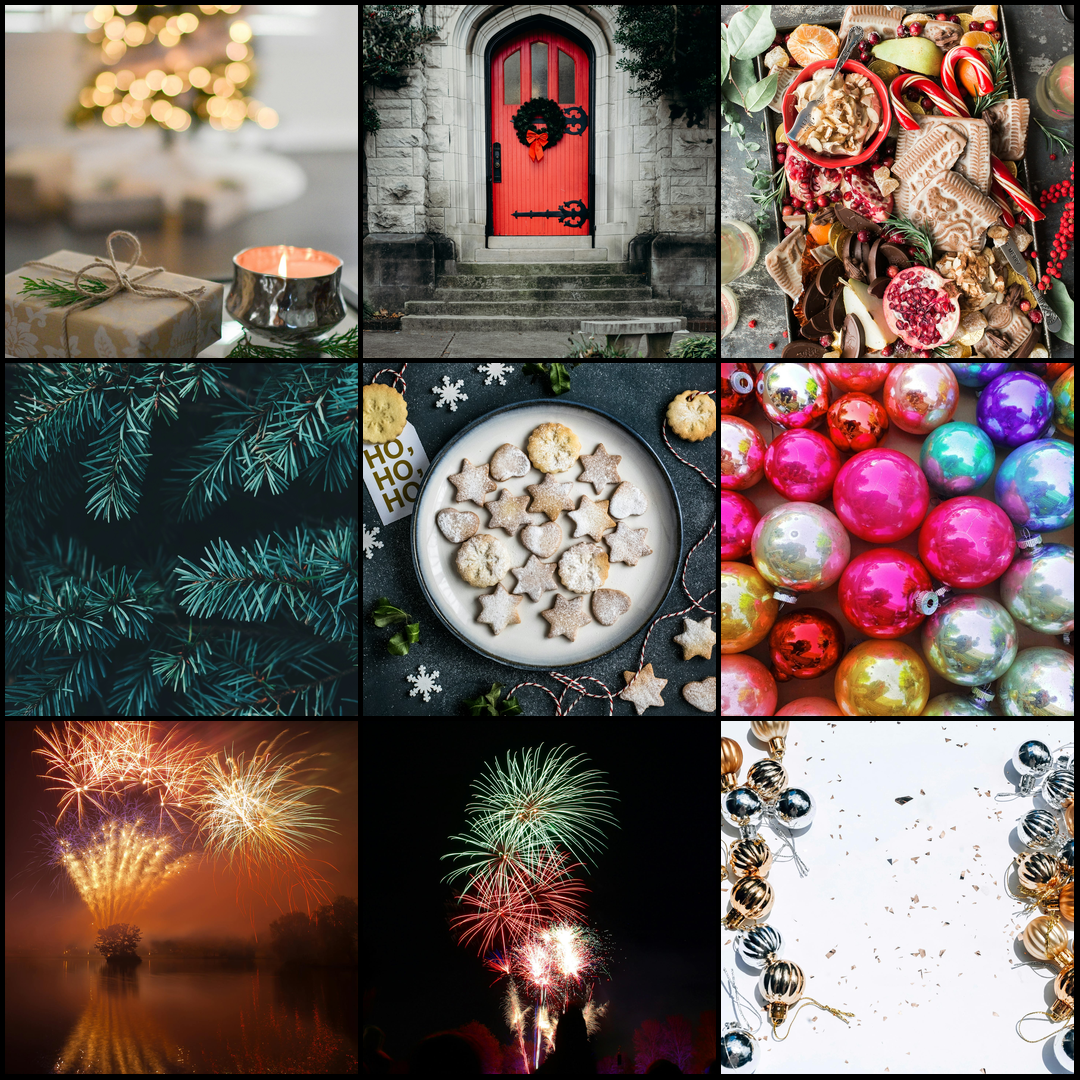
Strip & Stack Layouts
For rectangular canvases, we handle one row (horizontal) or one column (vertical):
if orientation == "horizontal":
    block_height = (canvas_height - (images_num + 1) * padding) // images_num
    block_width = canvas_width
elif orientation == "vertical":
    block_width = (canvas_width - (images_num + 1) * padding) // images_num
    block_height = canvas_height
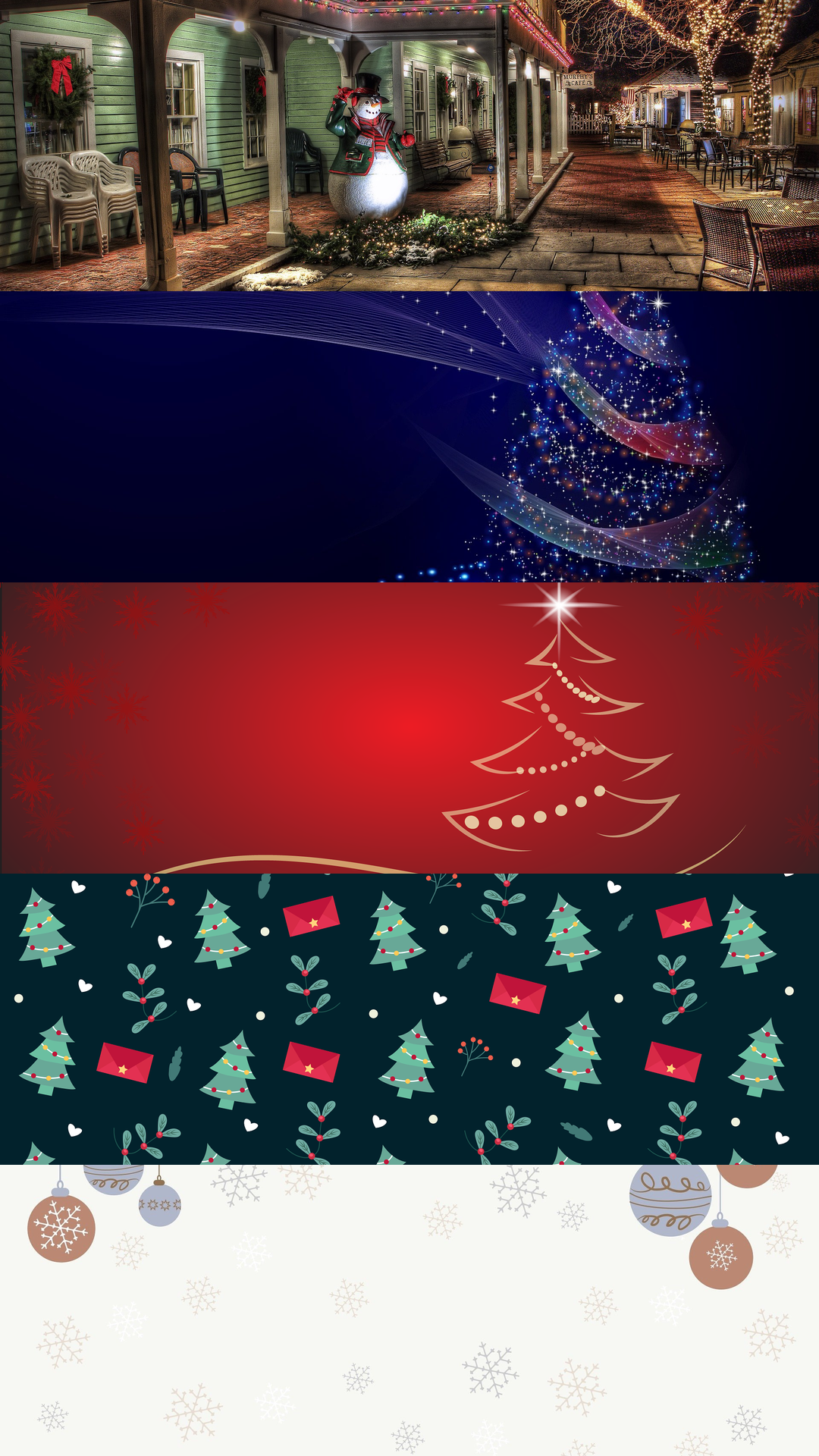
Golden Ratio Layout
For a more artistic layout, I used the golden ratio:
if working_area["width"] > working_area["height"]:  # Horizontal split
    img = ImageOps.fit(img, (int(working_area["width"] / GOLDEN_RATIO), working_area["height"]), method=Image.Resampling.LANCZOS)
else:  # Vertical split
    img = ImageOps.fit(img, (working_area["width"], int(working_area["height"] / GOLDEN_RATIO)), method=Image.Resampling.LANCZOS)
Streamlit UI
Streamlit made it simple to create an interactive web app. I defined constants for minimum/maximum images, padding, and common social media sizes with icons.
SOCIAL_MEDIA_IMAGE_SIZES = {
    "Instagram Feed Square": (1080, 1080),
    "YouTube Thumbnail": (1280, 720),
    ...
}
With session state and helper functions, the app keeps track of uploaded images, selected platform, background, layout, and options like randomization or centering.
Auto Layout Detection
If the user doesn’t choose, the app selects the best layout based on aspect ratios:
if squares == images_num:
    return grid_collage(...)
elif horizontal_rectangles == images_num:
    return lane_collage(..., orientation="horizontal")
elif vertical_rectangles == images_num:
    return lane_collage(..., orientation="vertical")
else:
    return golden_ratio_collage(...)
Final Steps
- Step 1: Upload images
- Step 2: Choose output size
- Step 3: Select background color/image
- Step 4: Pick layout (grid, strip, stack, golden ratio, auto)
- Step 5: Set padding, centering, randomization
- Step 6: Preview & download collage

Thoughts
- PIL is great for images, but lacks SVG support.
- Streamlit is quick for small/medium projects, but for complex UI/UX, use JS.